24/7 video
Uploading videos
Files live in your library on the Videos page and stay there until you remove them.
Upload from the Videos page. Files up to 95 MB go straight through; anything larger uploads in the background in pieces, so you can leave the page while it finishes.
Tick several files to play them back to back as a playlist, and drag them to set the order. The order in the list is the order they play.
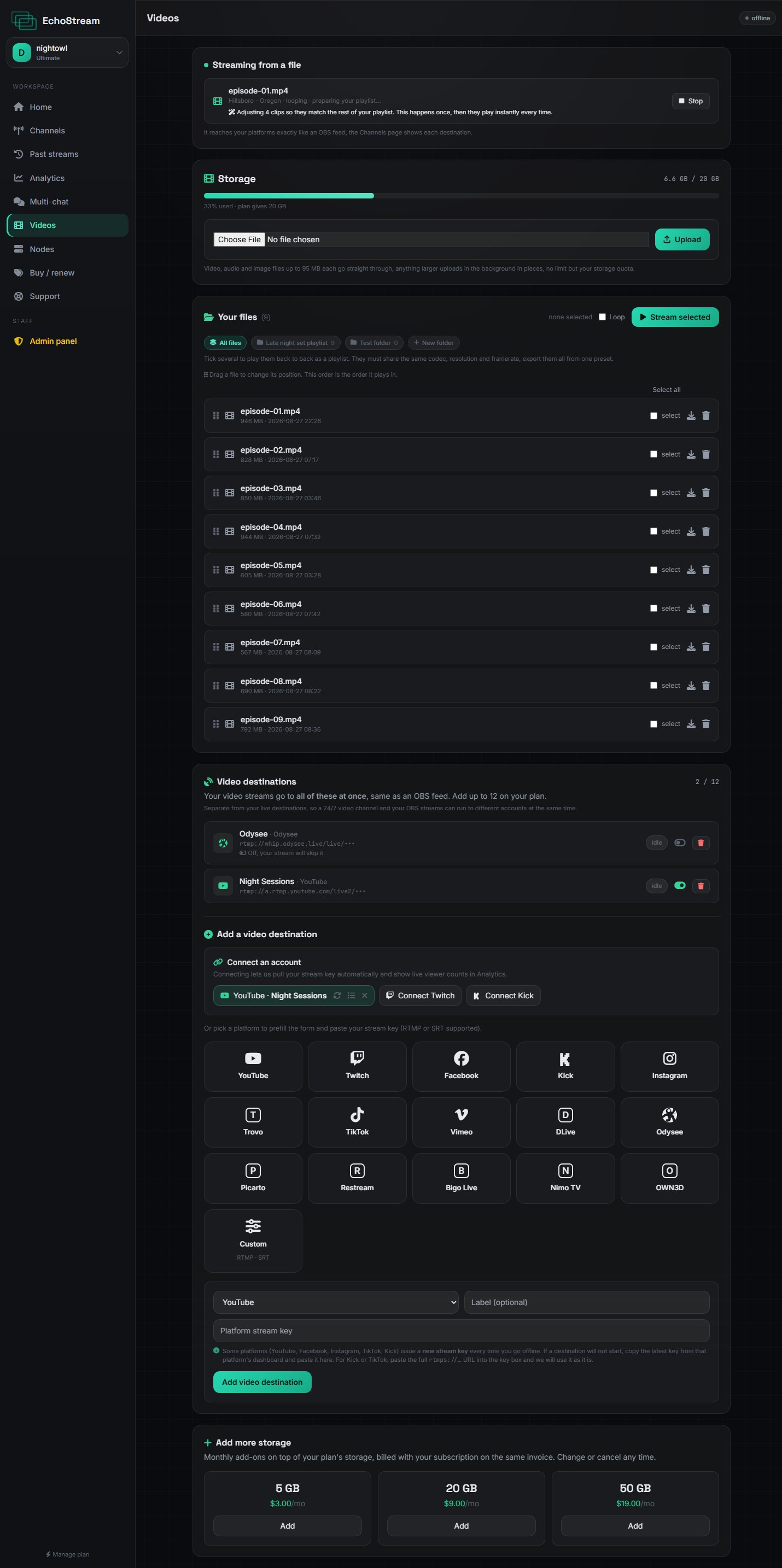
Organising a library
Folders group related files, which matters once you have more than a handful. A playlist can pull from anywhere in your library.
A 24/7 playlist goes to its own list of destinations, set up further down the Videos page, not to the channels your OBS stream uses. That is deliberate: it lets a round-the-clock video channel and your live streams run to different accounts at the same time. Adding a channel on the Channels page does not add it here.
Storage
Each plan includes an amount of storage, shown on the Videos page as you use it. Deleting a video frees its space immediately.
Export everything you upload at the same resolution and frame rate, with a 2 second keyframe interval. Files that already match each other start playing immediately. Files that do not have to be adjusted first, which takes time. See Why clips get adjusted.